On your iPhone, open the App Store using the button on this page. Verify the listing, then check its compatibility section. Check the App Store page for system requirements. If the store says your device isn't compatible, follow its guidance to check your device and system. Being able to view the product page doesn't mean the app can be installed.
The App Store handles purchase confirmation. Before confirming, check the account in use, displayed currency, and final price. Once the purchase is complete, wait for the app to appear on your device. Payment verification, download progress, and error messages are shown by the store or system. If a download is interrupted, first check whether the transaction completed, then troubleshoot your network or available storage.
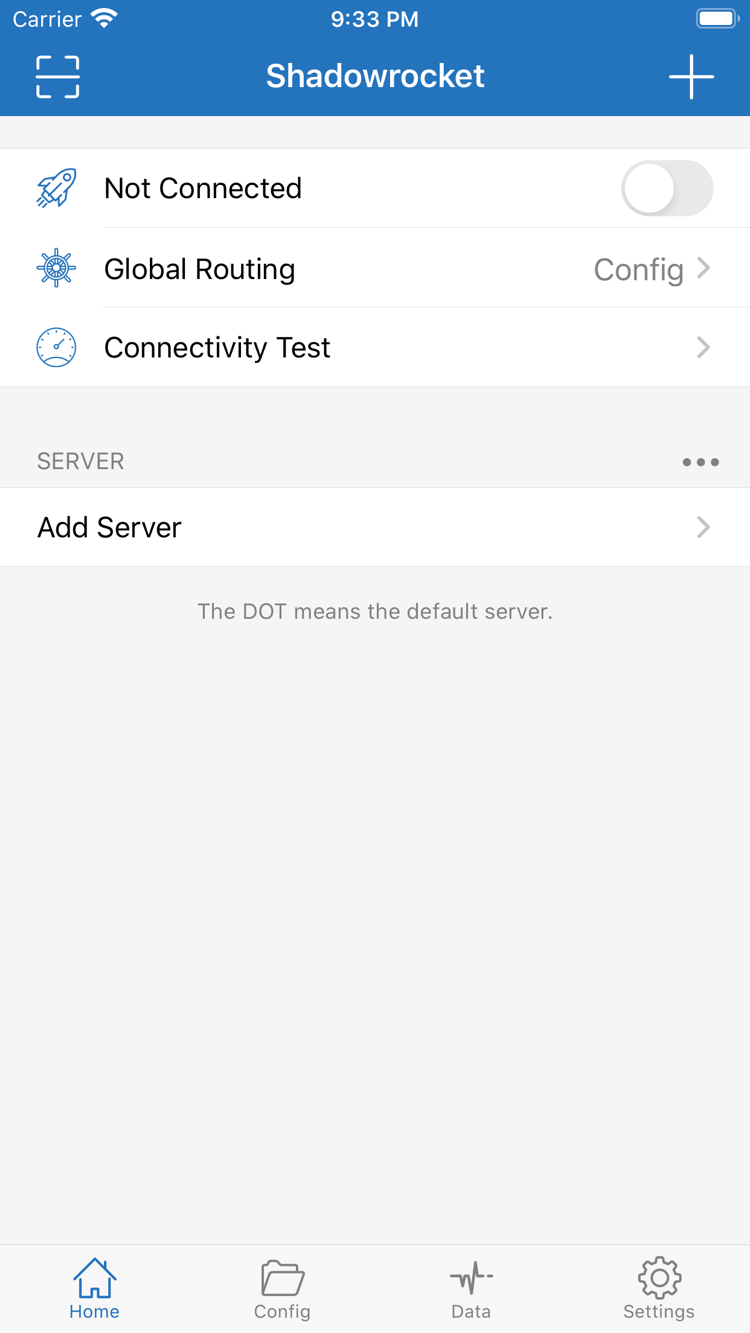
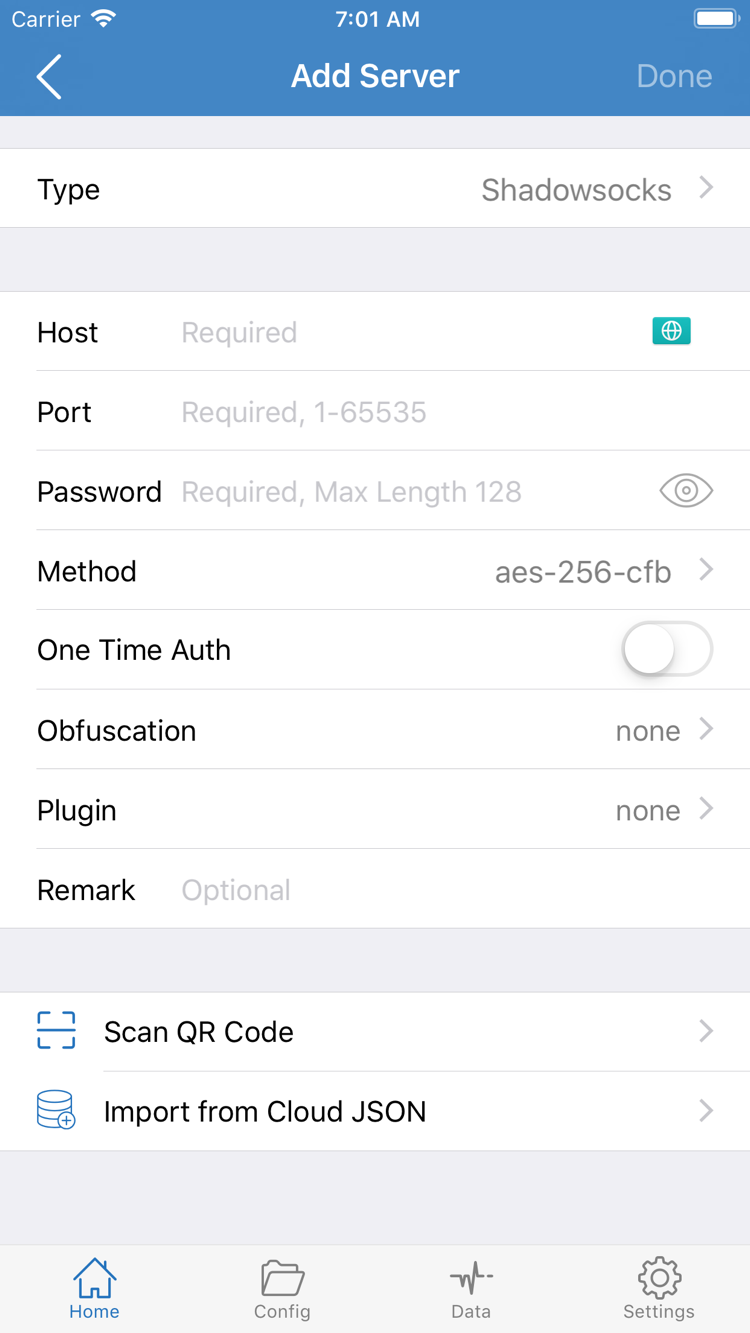
When installation is complete, open Shadowrocket. Not Connected on Home means no connection has been established. Installing the app and importing a usable configuration are separate steps. Add entries to the SERVER list using your own subscription or server details.
System Prompt on First Connection
The first time you try to connect, the system may ask permission to add a VPN configuration. This device permission allows Shadowrocket to use the system network extension to establish a connection; it is not another app purchase. Confirm that you're using Shadowrocket, then follow the system prompts to grant permission and complete any required device authentication.
Allowing a VPN configuration does not create server details or import a subscription. Check your existing configuration, choose a Global Routing mode, and then connect. For step-by-step help, read the official guide and follow the sequence: import, select, connect, and verify.
If system permission hasn't been granted, resolve that prompt first. If permission is granted but webpages still won't load, check your configuration and connection status instead. Troubleshooting installation, permissions, and connectivity separately helps avoid changing unrelated settings.