Official Guide / Getting Started

Shadowrocket
Add a Configuration and Connect for the First Time

Follow these steps: add a configuration, choose a mode, connect, verify, and troubleshoot. Check the result at each stage before moving on. For protocol parameters and rule behavior, see the protocol reference.

  • Home
  • Add Server
  • Config
  • Settings

Before you begin: Install Shadowrocket from the App Store and have your own subscription link or server details ready. This site does not provide, sell, or recommend nodes, subscriptions, or connection services. The app is a one-time purchase; it does not include a service plan or the server details needed to connect.

If you haven’t installed the app yet, first read how to verify and get Shadowrocket from the App Store. This guide uses iPhone and iPad; check the App Store page for system requirements.

These are official App Store screenshots to help identify screens and fields. Follow the interface shown on your device; you don’t need to copy the example details in the screenshots.

Step 01 / Prepare an Entry

Add Server: Add a Server or Import a Subscription

Open Shadowrocket and go to Home. First, identify the details you have: server parameters, a single-server share link, a QR code, or a subscription link. Each is imported differently. A URL starting with HTTPS is not necessarily a subscription link.

Enter Server Details Manually

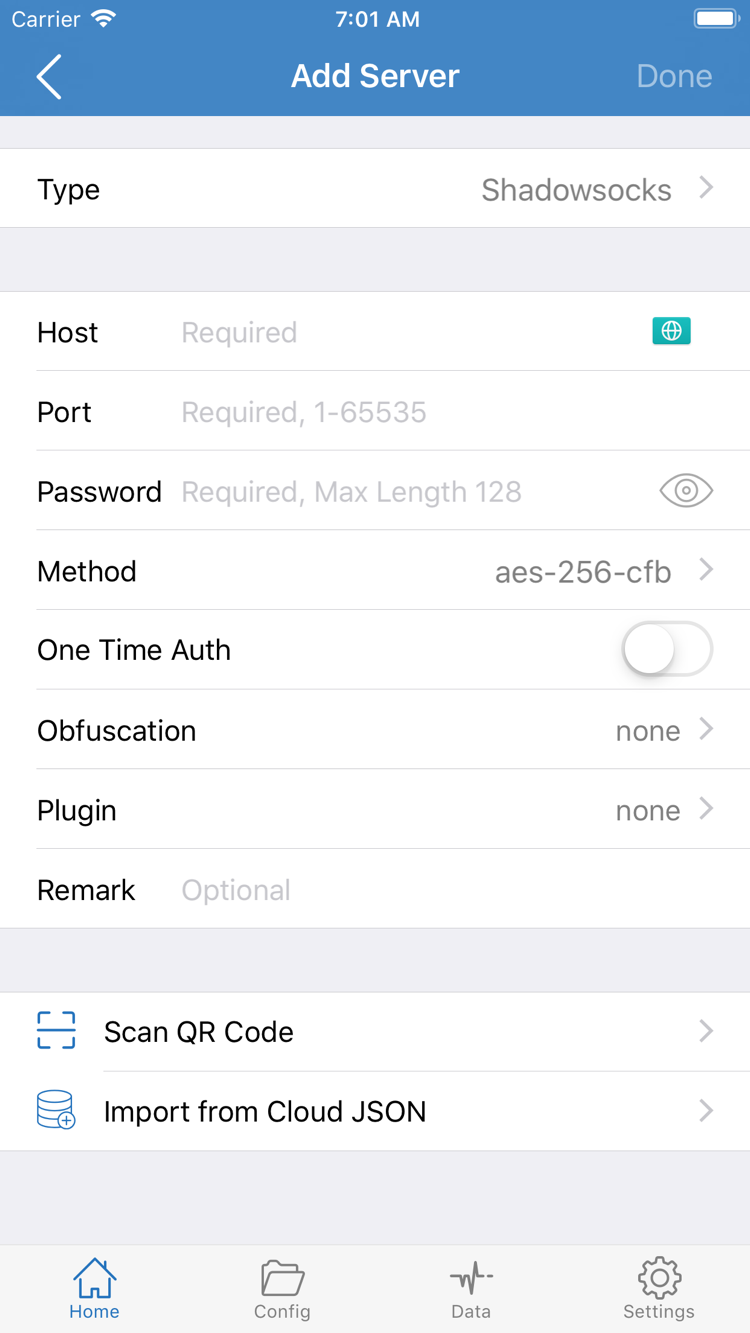
In the SERVER section on Home, find and open Add Server. Tap Type and select the protocol that matches your existing details, then enter Host and Port. Host is the server’s domain name or IP address; Port is the port specified by the server. Don’t paste an entire share link into Host or treat a path or query string as the server name.

The remaining fields depend on the selected Type. The screenshot shows fields such as Password and Method, but not every protocol uses the same parameters. Match Password, UUID, Method, TLS settings, and transport options to the original details. Don’t substitute fields from another protocol. A single incorrect character in the port or authentication details can let you save the entry but prevent a connection. Save, return to Home, and confirm that the new entry appears under SERVER.

QR Codes and Share Links

If you have a QR code, choose Scan QR Code in Add Server and allow camera access when prompted. Position the entire code within the viewfinder. After it’s recognized, check Type, address, and port before saving. A QR code is only a way to carry information; it doesn’t guarantee that the details are correct. If it won’t scan, check that the image is clear, the code is fully visible, and it contains a configuration the app can recognize.

If you have a single-server share link, copy it in full and return to the app. Follow the import prompt if one appears. If it doesn’t, check that the copied text doesn’t include extra explanatory text. Import from Cloud JSON is for compatible JSON details, not a general-purpose subscription import. If you’re unsure of the format, ask the person who provided it rather than trying different Type options at random.

Import an Existing Subscription with Subscribe

Under Type in Add Server, select Subscribe. Paste your complete subscription link into the URL field, save, and wait for the results. Return to Home and check that the subscription group and its entries appear. Subscription URLs may contain private access tokens. Keep all query parameters intact, but don’t share the URL in screenshots, forums, or public documents.

If the subscription group appears but contains no server entries, first check whether your local network can reach the URL and whether the subscription is still valid. An empty group doesn’t mean the import is complete. Subscription updates may add or remove entries, so keep the original details before renaming or reorganizing them. For now, confirm that at least one entry matches the original details; you’ll choose how to handle traffic in the next step.

Check before moving on: The expected entry appears under SERVER on Home. Type, Host, and Port match the original details.
Shadowrocket Add Server screen showing Type, Host, Port, Password, Method, Scan QR Code, and Import from Cloud JSON
Add Server: Select Type, then check the fields required by that protocol.

Step 02 / Choose How to Handle Traffic

Global Routing: Config, Proxy, and Direct

After adding an entry, return to Home and tap Global Routing. This setting determines how the app handles connections within its scope; it’s not where you select a server. The three modes are Config, Proxy, and Direct. Decide what you’re testing before you choose a mode. Otherwise, it’s easy to draw the wrong conclusions about a server from a web page result.

Config: Route Traffic Using the Current Configuration

Config processes requests according to the currently enabled configuration file. Open Config to check which file is actually selected, rather than just checking whether a file appears in the list. Adding a server and adding a configuration file are separate tasks: a server entry in a subscription doesn’t mean the required routing rules have also been imported or enabled. If you already have a configuration file, check its source and contents before selecting it.

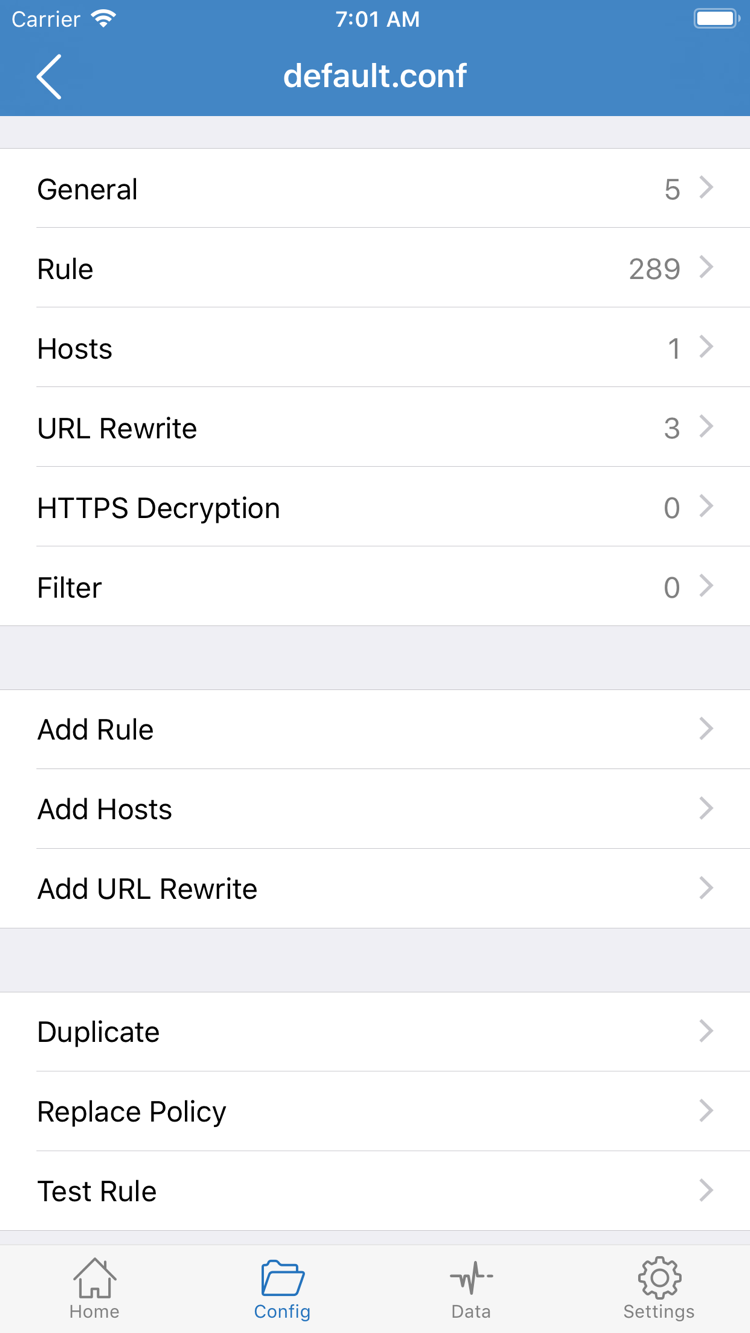
The official screenshots show the General, Rule, Hosts, URL Rewrite, and HTTPS Decryption sections in the configuration editor. For a first setup, focus on Rule: rules are usually checked from top to bottom, and the matching rule determines the policy. DIRECT means a direct connection, PROXY means using a proxy policy, and REJECT means blocking the connection. A broad rule placed too early can prevent later, more specific rules from being checked.

This guide doesn’t require you to change HTTPS Decryption or enable rewriting. Start with a basic configuration you understand and get the connection working; save more complex settings for later. If you’re unsure which policies the current file uses, keep the original and read the protocol reference and parameter guide and FAQs about rules and routing. Don’t change several sections at once just to get connected for the first time.

Proxy: For a Controlled Proxy Test

Proxy handles connections within the app’s scope using a proxy. You can use it for a controlled comparison with Config. It doesn’t guarantee access to every destination or replace checking the server details. If a destination works in Proxy but fails in Config, check the current configuration file and the matching policy before deleting the server.

Direct: Check Your Local Network Baseline

Direct handles traffic without using a proxy, making it useful for checking how a destination behaves on your current local network. It doesn’t mean the selected server has successfully established proxy access. For a comparison, use the same destination and local network, change one mode at a time, and make a new request. When you’re done, switch back to the mode you need and continue to the connection step.

Check before moving on: You’ve selected Config, Proxy, or Direct. If you’re using Config, you know which file is enabled.
Shadowrocket Config editor showing the General, Rule, Hosts, URL Rewrite, and HTTPS Decryption sections, and Add Rule
Config: Review configuration contents here; this is not the mode selector for Global Routing.

Step 03 / Connect the App

Home: Select an Entry and Turn On the Connection

Return to Home and select the server you want in the SERVER list. Check that the selection indicator is on the expected entry. A subscription group may contain several entries with similar names, so identify the right one by its address or existing notes. An entry in the list only means its details are saved; it doesn’t mean it’s selected or that the app is connected.

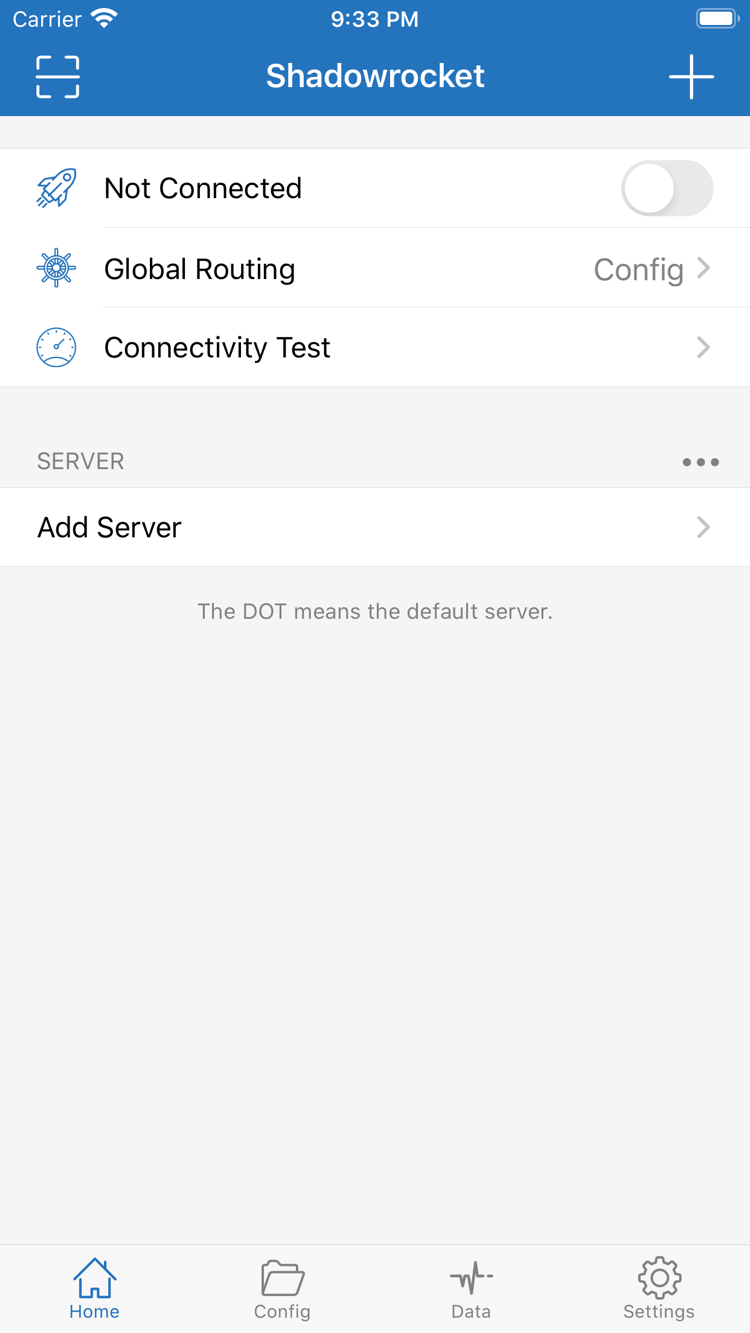
Check the mode shown under Global Routing, then turn on the connection switch at the top next to Not Connected. The first time you connect, the system may ask permission to add a VPN configuration. This lets Shadowrocket create a system network configuration; it doesn’t purchase a connection service or fill in server details for you. If you initiated the prompt, allow it and complete any device authentication requested by the system.

If you canceled the permission prompt, return to the app and turn on the connection switch again, then follow the system prompt. If your device is restricted by a management policy, you may not be able to change the permission yourself; check the device’s management requirements. Don’t repeatedly delete the app to try to resolve a permissions issue, as this risks losing local configurations. Permission and server authentication are separate: allowing a VPN configuration won’t fix an incorrect Host, Port, or Password.

After granting permission, return to Home and check whether the connection status at the top changes from Not Connected. If the switch turns off immediately or the status doesn’t complete, stop toggling it and note the current mode, selected entry, and prompt text. Before switching servers or changing parameters, turn off the connection. Reconnect after making the change so you can tell which details were used for the test.

A VPN indicator only shows the system-level VPN connection status. It doesn’t prove that a particular website is accessible or that a rule matched as expected. Once the connection status is confirmed on Home, keep the current entry and mode and continue to the next step to test an actual request. For now, don’t enable extra automatic connection conditions that could interrupt your manual test.

Check before moving on: The correct server is selected, VPN permission is handled, and the connection status on Home has changed.
Shadowrocket Home screen with a Not Connected switch, Global Routing, and Connectivity Test at the top, and the SERVER group and Add Server below
Home: Check the selected server, Global Routing mode, and connection switch separately.

Step 04 / Distinguish Connection Status from Access

Connectivity Test: Test First, Then Check an Actual Page

Check the Test Response

Run Connectivity Test on Home and wait for the current test to finish. Results depend on Test Method, the test destination, your local network, and server status. A single response only shows the result of that test at that time; it doesn’t mean every app or website will work.

Then Check an Actual Request

Keep the same server and mode, then open a new page in your browser and visit a known destination. Check that the page and its necessary resources load. Existing tabs, cached pages, or persistent connections can hide the effects of a setting change, so use a new request when comparing modes.

If Connectivity Test responds but a web page won’t open, don’t immediately conclude that the server is unavailable. The test and web page use different destinations, and DNS resolution, the TLS handshake, the destination’s status, and routing rules can all differ. First note whether all pages fail or only one domain. Then check whether that domain should use DIRECT or PROXY under the current configuration. If needed, review the app’s actual request records to confirm the destination, matching rule, and resulting policy.

To check how Config behaves, send a new request to a destination with a clear rule and review the corresponding record. Page load speed alone can’t tell you whether a request used a proxy, and one check of an exit IP can’t show how all traffic is handled. Rules may route different domains differently, so test specific destinations.

You can also disconnect the app and visit the same destination on the same local network to establish a baseline. If it still fails, consider issues with the local network or destination. If it only fails in Config but works for the same request in Proxy, check the configuration rules first. Don’t change Wi-Fi, server, and mode at the same time during a test, or it will be hard to tell what affected the result.

For the first verification, check three things: Home stays connected, the actual destination responds, and the mode and rules match your needs. Assess speed and long-term stability separately under your normal usage conditions; a single Connectivity Test can’t establish either. Once everything checks out, switch back to your usual mode. If something fails, continue with the troubleshooting steps below.

Step 05 / Change One Thing at a Time

Settings and Common Troubleshooting Checks

Start by identifying where the failure occurs. If nothing imports, check the format of the details. If an entry appears but won’t connect, check its parameters and permissions. If it connects but you can’t access a destination, check DNS, rules, and the destination. This avoids changing Rule when a subscription hasn’t loaded, or changing unrelated system settings when an authentication field is wrong.

No Entries After Subscription Import, or Incomplete QR Scan

Check that the original details are complete, especially the subscription URL’s query parameters, the share link prefix, and the QR code edges. Check whether the subscription can be fetched on your current network and whether it returns a login page or regular web page instead of configuration data. Don’t enter a private subscription URL on an unfamiliar online conversion site. Once you’ve confirmed the format, import it again and check for entries on Home. If the issue persists, ask the provider to confirm that the details are valid.

Connection Switch Won’t Stay On, or Authentication Fails

First confirm that the system has granted VPN configuration permission. Then check the selected entry’s Type, Host, Port, and authentication fields. For entries that require TLS or specific transport settings, also check the server name and related options; don’t check Password alone. If the result differs on another trusted local network, note the difference, but don’t assume that a particular protocol will necessarily fix the issue. For details on protocol fields, see the protocol reference.

Test Responds, but Web Pages Won’t Open

Open Settings and check Test Method to understand how Connectivity Test works, then distinguish that test from an actual web request. Next, check the DNS settings and Rule in the current configuration. If domain-based access fails while another test responds, DNS resolution is one area to check, but that alone doesn’t identify the cause. Don’t replace an HTTPS domain with an IP address arbitrarily; certificates and site selection also depend on the domain.

Connection Keeps Turning On Automatically, or Results Are Inconsistent

Check On Demand in Settings. It triggers connections based on configured conditions; it doesn’t correct server parameters. While troubleshooting, you can temporarily turn off On Demand to see what happens when you connect manually. After confirming that a manual connection and the destination request both work, restore the conditions you need one at a time and check that behavior remains as expected when switching local networks.

Record Diagnostics Before Making Another Change

Diagnostics in Settings provides available diagnostic information. Record what happened, the current Global Routing mode, the test method, and any error messages. These details are more useful for narrowing down the issue than simply saying it doesn’t work. Before sharing records, hide private server addresses, subscription URLs, authentication fields, and other identifying information. You don’t need to publish your full configuration.

Change one setting at a time and repeat the same verification steps from Step 04. Keep the original configuration before making changes, and try another approach only if you can restore it. For subscription status, server certificates, or authentication details, ask the provider of your existing information to confirm them. For purchases, device compatibility, or restoring a purchase, see how to restore a purchase. For other scenarios, see the FAQs. There’s no need to change every setting at once because of a single failure.

Record completed: the entry used, Global Routing mode, destination tested, and stage where the failure occurred. Start with these four details when troubleshooting further.
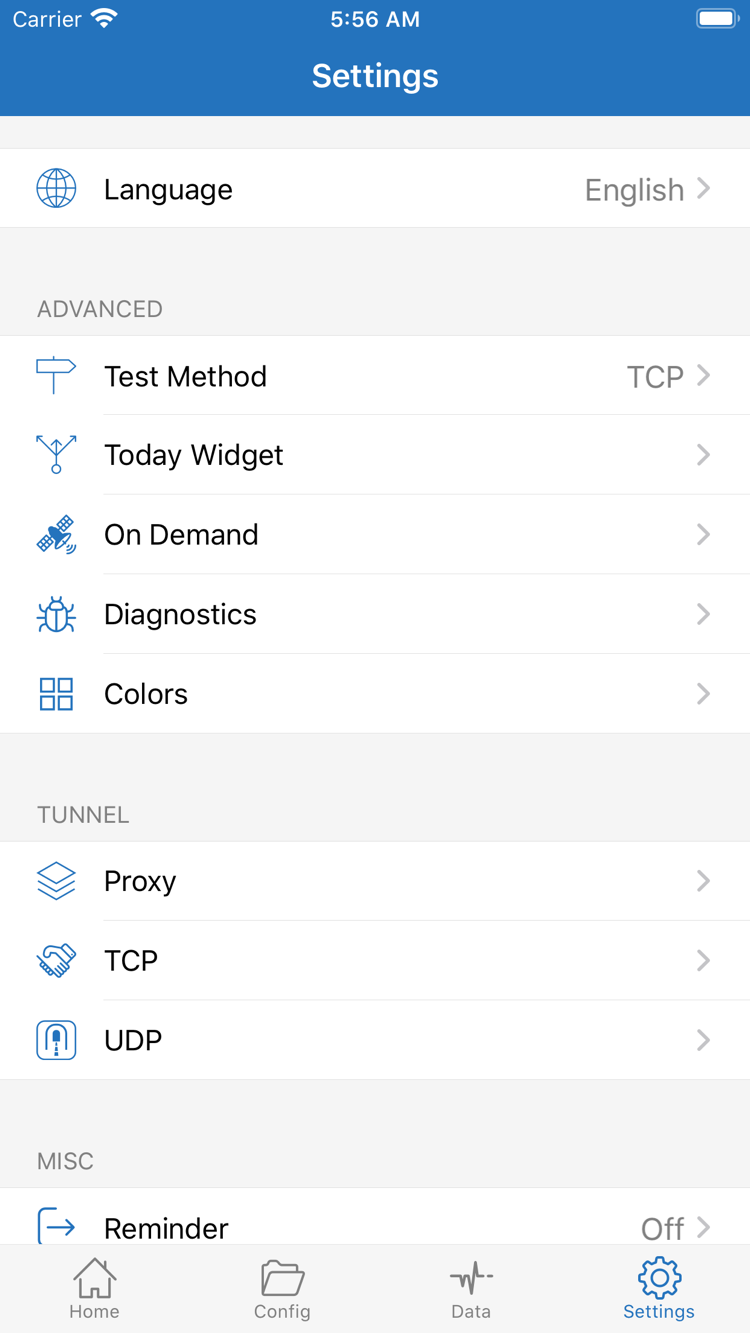
Shadowrocket Settings screen showing Language, Test Method, Today Widget, On Demand, Diagnostics, Proxy, and TCP and UDP settings
Settings: When troubleshooting, look for Test Method, On Demand, and Diagnostics.

Once the basics are working, review protocol fields or rule details as needed. Keep a configuration you can restore, and make further changes one at a time: change a setting, send a new request, and compare the result.

Get the Official Shadowrocket App